Our users periodically have questions about the purpose and support of the FQDN of the 3CX server (which can now be provided by 3CX): principles for choosing the FQDN, assigning this FQDN to the license key, etc. In this article we will answer many of the questions of this kind.
When installing 3CX v15 and 15.5, the license key is bound to the FQDN chosen by the administrator during the server installation. Therefore, it is very important to correctly select the FQDN right away in order to avoid unnecessary work later.
Often they ask the question, why do I need a FQDN for a 3CX server? Isn't it easier to get by with just an IP address? We answer:
- For remote secure (SSL) connection of 3CX clients to a web service, transmitting user statuses, call history, chat, centralized client management and other functions that can be called a common term: unified communications.
- To provide secure remote access to the 3CX control interface
- To implement fault tolerance, IP-phones can be connected to a single FQDN, which can be resolved both to the IP address of the main server and to the address of the backup server.
- Work on a dynamic IP address. If your ISP does not issue a static IP address, the FQDN from 3CX implements a dynamic DNS service for you.
- Securing your license. The license you purchased is assigned to your domain. In the case of its unauthorized use, it will be impossible to use PBX on this key, since you will immediately see that someone is using your domain on a foreign IP address.
First consider the choice of FQDN for the 3CX server, provided that you install this license key for the first time (no FQDN is not yet associated) and use 3CX v15 SP4 or higher.
3CX Domains
3CX v15 users with an active subscription to product updates can get a public domain name from 3CX in one of its domain zones. This service is provided free of charge. In addition to the domain name, users automatically receive a free trusted SSL certificate for this FQDN from Let's Encrypt organization. During the installation process, select the host name (userpart) 3CX and the domain zone (hostpart) offered to you in the installer interface, the generated FQDN (userpart.hostpart.tld) is bound to the activated license key.
In addition, an additional FQDN is created for the WebMeeting service according to this principle: userpart.host.tld -> userpart-tld.3cx.net
Regular domains:
customer.3cx.de -> customer-de.3cx.net Customer.3cx.us -> customer-us.3cx.net
Second level domains:
customer.3cx.co.uk -> customer-uk.3cx.net customer.3cx.co.nz -> customer-nz.3cx.net customer.3cx.com.tr -> customer-tr.3cx.net customer.3cx.co.za -> customer-za.3cx.net
Exception domains:
customer.elastix.com -> customer-ecom.elastix.net
City domains are reduced to 3 letters:
customer.3cx.barcelona -> customer-bar.3cx.net
Second level subdomains:
customer.north.3cx.us -> cusomer-north-us.3cx.net
3CX reserves the right to withdraw the assigned FQDN assigned to you at any time, which has the following features:
- Violates Trademarks of Other Companies
- Used for purposes other than 3CX hosting.
- Contains insults and other text of this kind.
- Required by the company 3CX (in this case, 3CX communicates with the partner for the correct transfer FQDN)
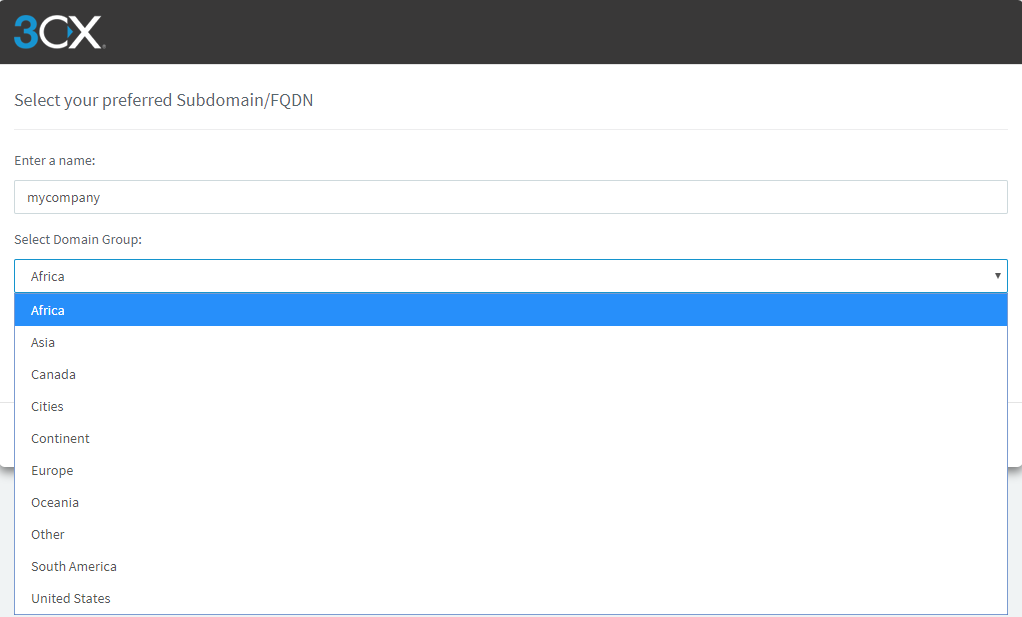
Note also that the 3CX user does not have the right to require from 3CX a domain name that is already taken by another user.
All domain names are issued as available. If the FQDN has not been used for a long time, it is released for other users. Therefore, it is not guaranteed that the FQDN that you previously tied to your license key is still available.
Own domains
If you install a 3CX server under your own corporate FQDN (and not issued by 3CX), keep in mind that this requires a 3CX Pro or Enterprise edition. You must also purchase a trusted SSL certificate for this domain name (or a wildcard certificate for the entire domain). Unfortunately, free certificates of Let's Encrypt in this case are not issued.

The 3CX license key will be tied to your own FQDN, and the FQDN of the WebMeeting portal is configured as follows: userpart.hostpart.tld -> userpart-hostpart-tld.3cx.net
Examples:
customer.domain.com -> customer-domain-com.3cx.net customer.domain.co.uk -> customer-domain-co-uk.3cx.net pbx.customer.domain-part.co.nz -> pbx-customer-domain-part-co-nz.3cx.net
FQDN free license 3CX
Free 3CX licenses (except partner NFR keys) that have not been used for 3 months are unlinked from their associated FQDN. These FQDNs can then be registered by other users. If the FQDN is already taken by another user, you will see the message Used during the key activation phase (see below).
DNS TTL in different editions of 3CX
The time to cache DNS records (TTL) depends on the type of your license. For Standard and Pro licenses, it is set to 6 hours. For Enterprise licenses - 300 sec. Due to this short period, it is possible to switch users to the IP address of the backup server very quickly (up to 5 minutes), because the smaller the TTL, the faster the A-record FQDN is updated to the current IP address.
FQDN change
If you want to change your current FQDN, check out
our previous article .
Possible mistakes
As mentioned above, when you first install the 3CX installer, it links your chosen FQDN to your license key. But if the selected FQDN is already in use, this error will appear:
Error creating FQDN: FQDN already in use. Please choose another one
In this case, simply select another FQDN.
Please note that repeated installations of 3CX with the same key will “pull up” the FQDN associated with it. If you specify another FQDN, an error will appear:
Error creating FQDN: License key already bound to another FQDN
In this case, you need to go to the 3CX User Portal and check which FQDN is tied to the key. If the associated FQDN does not suit you, untie it from the key, and only then continue the installation of 3CX.
The following strange error is also possible:
Domain zone XYZ is exhausted and can not be used. Please choose another domain.
In this case, the only solution is to choose another top-level domain.